


Free SEO tutorial · No signup required
SEO for Beginners: How We Set Up Lytning.ca (With Real Code)
Learn how to do SEO for a website, step by step. Build your skills in keyword research, on-page SEO, technical SEO, and Google Search Console using our real code and examples.
Jump to a step
Here's what's in it:
- Part 1: Setup – Use real heading tags · Figure out your keywords · Skip "index, follow" · Tell search engines how they can show your stuff · Hide the pages that aren't your business · Shrink your images · Add a canonical tag · Add a
robots.txt· Add asitemap.xml· Connect Google Search Console - Part 2: UAT / testing – Start with the Pages report · Make sure the code is actually there · Check the live site · Test redirects · Check that Google can see it
- Part 3: Live monitoring – See what people search · Check what's indexed · Challenges
Part 1: Setup
Getting your website ready for search engines.
The original case study · November 2026
We started with just 5 pages indexed. A week later it was 15, and people were finding us by searching things like “hubspot integration consultant.” Here’s everything we did to get there, in order, with the real code we used. If you run a small site and have no idea where to start, this should get you most of the way.
The results described in this guide are historical, not live metrics.
Use real heading tags
The first thing we checked was our headings in the website’s HTML. On the old version of the site, the company name, LYTNING, at the top was just a div with a CSS class that made it big and bold. It looked like a title to you, but to Google it was regular text.
<!-- before: looks like a title, but it's just a div -->
<div class="brand-title">LYTNING CONSULTING INC.</div>
Search engines use your HTML structure to understand your page. A descriptive <h1> helps identify the main topic, followed by <h2> and <h3> section headings.
<!-- after: a real h1 -->
<h1 id="home-title" data-split-title>LYTNING</h1>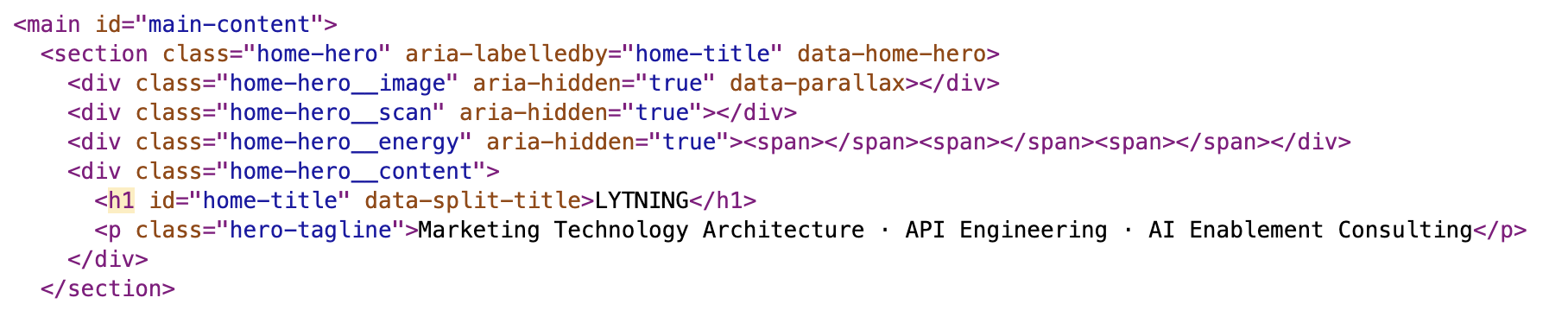
Figure out your keywords
“Keywords” are the words people type into Google. The point is to pick what your clients would actually search, not what sounds good to you.
For Lytning that meant terms like "Adobe consulting", "Adobe Experience Cloud consulting", "Salesforce Marketing Cloud consulting", "HubSpot consulting", "custom web design Toronto" and "technical SEO". Once you have the list, use relevant terms naturally in your page <title> and <h1> tags.
Skip "index, follow"
While researching, we looked at the source code of the #1 result on Google for "adobe consulting" and found this:
<meta name="robots" content="index, follow, max-image-preview:large, max-snippet:-1, max-video-preview:-1">Turns out you don't need the "index, follow" part. Here's how Google reads a page:
- Your server sends the page's HTML to Google's crawler (Googlebot).
- Googlebot looks for instructions like
<meta name="robots">. - If there's no tag, Google uses its defaults: index, follow.
- If there is one, Google follows what it says when it decides how to crawl, index and show the page.
So "index, follow" just tells Google what it was already going to do, and we left it out. The robots tag can also control how your content appears in search results. More on that below.
- 01DiscoverLinks and a sitemap help Google find a URL.
- 02ReadThe crawler retrieves HTML and its instructions.
- 03Consider for searchAn accessible page can be considered for indexing.
We also added a meta description:
Google may use this text below your page in search results.
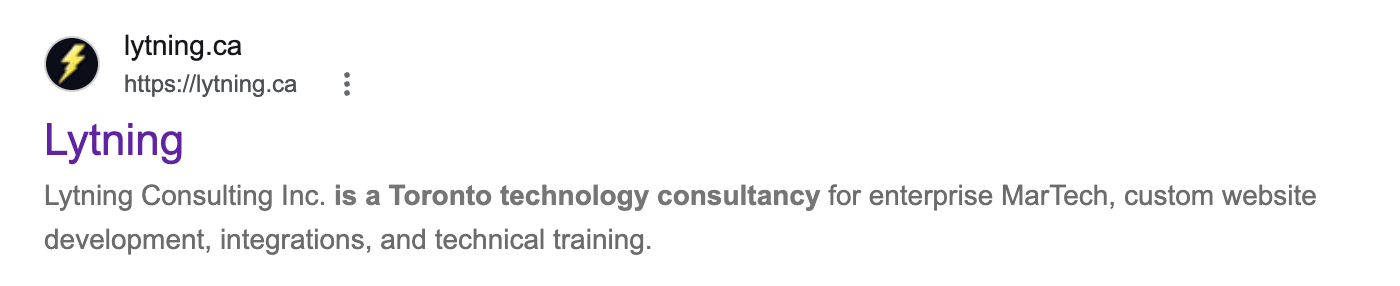
<meta name="description" content="Lytning Consulting Inc. is a Toronto technology consultancy for enterprise MarTech, custom website development, integrations, and technical training." />Tell search engines how they can show your stuff
We added this to the <head> of each page:
<meta name="robots" content="max-image-preview:large, max-snippet:-1, max-video-preview:-1">Google supports these directives; other search engines, including Bing, may handle them differently. What each part does:
- max-image-preview:large lets search engines show big previews of our images (Google Images, Discover, Bing, etc.)
- max-snippet:-1 means no limit on how much of our text they can show in a result
- max-video-preview:-1 is the same idea for video
Full list of what you can put in a meta tag: MDN's meta name reference
Hide the pages that aren't your business
We had a few pages on lytning.ca that weren't meant to appear in search results. The last thing we would want is those pages showing up when someone searches for Lytning. Public pages may be indexed unless you specify otherwise, so we added this to the <head> of each of those pages:
<meta name="robots" content="noindex">Shrink your images
Big images make your pages slow, and Google pays attention to how fast a page loads. Ours were way bigger than they needed to be. The worst one was the North York Performance logo: a 16 MB PNG. The version on the page now is a 7 KB WebP, and the little icon in the browser tab is a 20 KB PNG. Our homepage banner went from 1.8 MB to 120 KB.
We did two things:
- Converted to WebP. We swapped the heavy PNG and JPEG banner images for WebP versions, which look the same but are a fraction of the size.
- Resized anything bigger than it's shown. If an image only ever shows up 400 pixels wide, there's no reason to load a 4000-pixel version.
For images further down the page, we added loading="lazy" so the browser waits until you scroll near them before downloading them:
<img
  src="images/lydia_ai_portrait.webp"
  alt="AI portrait of Lydia NOUR, Senior MarTech Architect"
  width="1024"
  height="1024"
  loading="lazy"
  decoding="async"
/>
The big image at the top of the page gets the opposite treatment. We tell the browser to grab it first, since it's the first thing you see by using fetchpriority="high":
<link rel="preload" as="image" href="images/hero_home_motion.webp" type="image/webp" fetchpriority="high" />One more tip: always fill in the alt text because it’s best practice for accessibility. Google reads it to understand what the image shows, and screen readers read it out loud.
Add a canonical tag to every page
The same page can usually be reached at more than one address. lytning.ca, www.lytning.ca, http://lytning.ca and lytning.ca/index.html all show our homepage. To Google, that can look like four copies of the same page, and it has to guess which one to show in search results.
A canonical tag takes the guessing out of it. It goes in the <head>, right under the <title>, and points at the one address you want Google to use:
<link rel="canonical" href="https://lytning.ca/" />Every page gets its own canonical tag pointing at itself. For example, our Web Development page has:
<link rel="canonical" href="https://lytning.ca/services/webdev/" />We went through every HTML file in our site folder to make sure none of them were missing one. You'll see in Part 3 why this matters.
http://lytning.cawww.lytning.calytning.ca/index.htmlhttps://lytning.ca/Add a robots.txt
robots.txt is a small text file at your site's root that tells crawlers which paths they may access.
Here's our whole robots.txt. You can see it live at lytning.ca/robots.txt:
# robots.txt for https://lytning.ca
User-agent: *
Allow: /
Disallow: /api/


Sitemap: https://lytning.ca/sitemap.xml
"Allow: /" means crawl everything, except the /api/ folder, which has nothing useful for someone searching. The last line tells crawlers where to find the sitemap.
Add a sitemap.xml
sitemap.xml lives in the same folder, and it's the list of pages you want search engines to find. It's one <url> block for each page. Here's a shortened version of ours:
<?xml version="1.0" encoding="UTF-8"?>
<urlset xmlns="http://www.sitemaps.org/schemas/sitemap/0.9">
  <url>
    <loc>https://lytning.ca/</loc>
    <lastmod>2026-11-12</lastmod>
  </url>
  <url>
    <loc>https://lytning.ca/services/webdev/</loc>
  </url>
  <!-- one <url> block for each page you want found -->
</urlset>
Use an accurate lastmod date for meaningful page updates; Google may use it when deciding when to crawl again. Only list pages you actually want in search: no redirects, no noindex pages and no pages you've removed.
Connect Google Search Console (GSC)
Google Search Console (GSC) is free, and it shows you your site the way Google sees it: which pages are indexed, which ones aren't and why, and what people searched to find you.
- Go to search.google.com/search-console and add your site. We picked a Domain property, so it covers every version of lytning.ca (www, http and https) in one place.
- Verify that you own the domain. GSC gives you a TXT record to add to your domain's DNS settings.
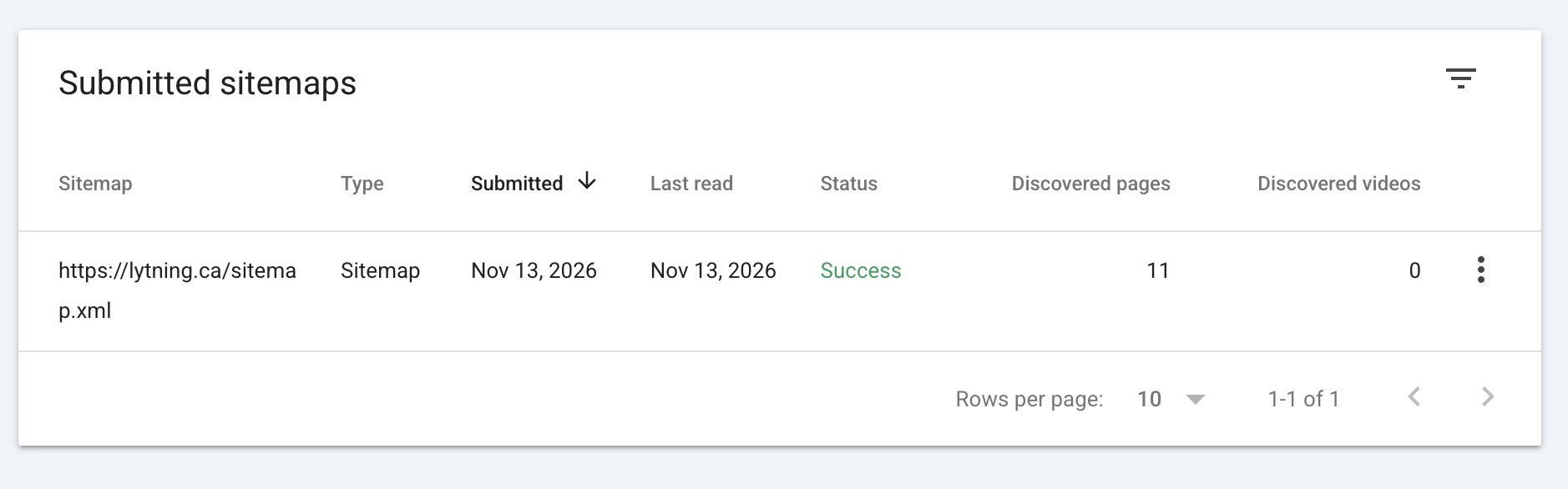
- Open Sitemaps, paste in your sitemap URL and hit Submit.
Once Google reads the sitemap, it shows "Success" and how many pages it found. Ours picked up all 11:
Set this up early, even before your site is finished. According to Google's documentation, Search Console only starts collecting data once you add your site, and it has nothing from before that. It starts collecting even before you verify, you can see the data once you're verified, and it keeps up to 16 months of it.
Part 2: UAT / testing
Verifying that your implementation actually works.
UAT stands for user acceptance testing. Basically, before you call something done, you make sure it actually works the way a visitor (and Google) sees it.
Start with the Pages report
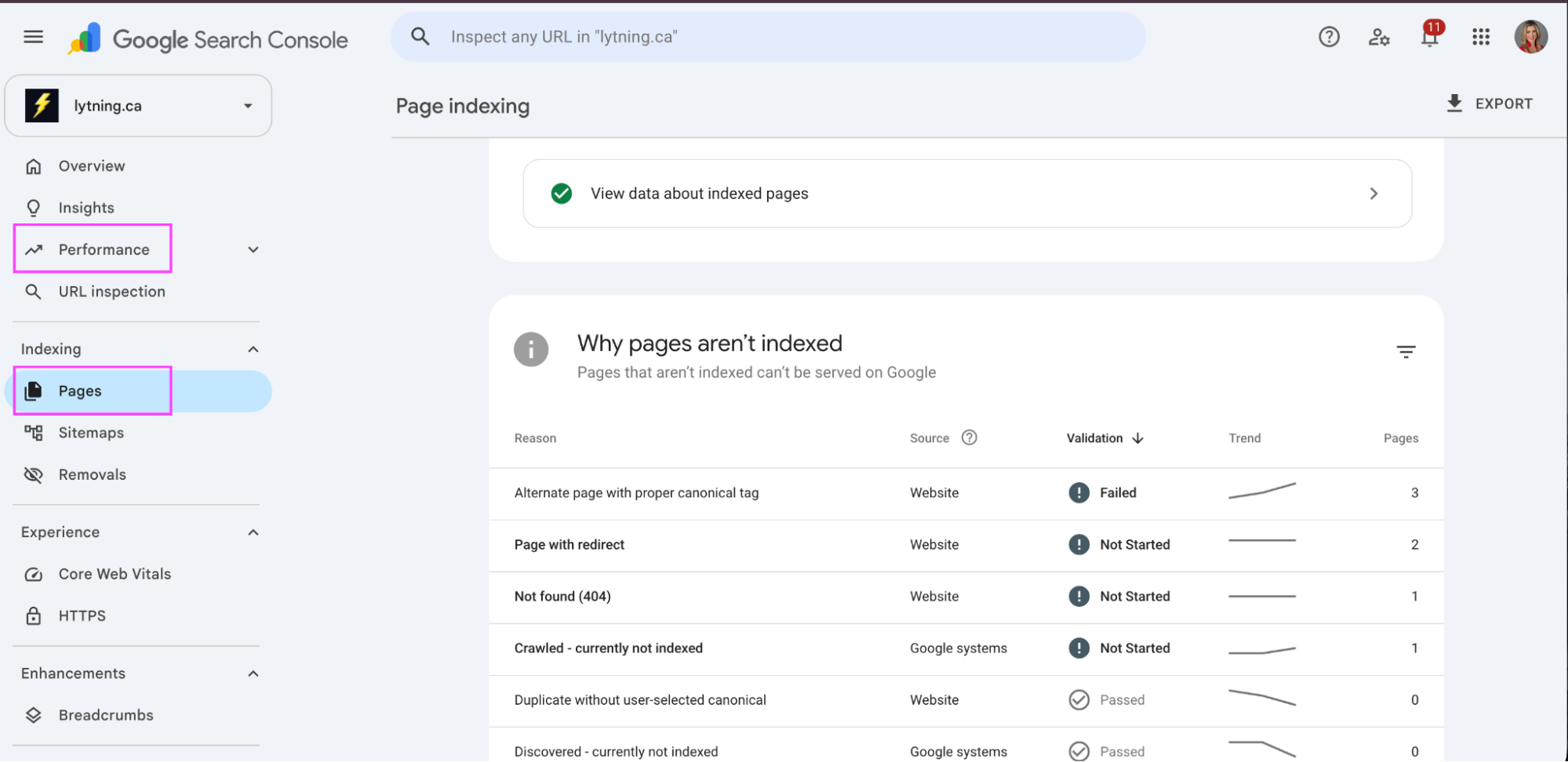
Once Search Console was connected, the first thing we did was open Indexing > Pages to see what Google was flagging. That became our to-do list: only 5 pages indexed, plus duplicate pages with no canonical tag, pages Google had found but not crawled yet, and a 404 on our API.
Make sure the code is actually there
Adding a tag to 25 pages by hand, you're probably going to miss one. So we ran a quick scan through every HTML file. This lists any page that's missing the canonical tag:
grep -rL 'rel="canonical"' --include="*.html" public_htmlNo output means you're good. Works for anything else you added everywhere too, like the robots tag.
Check the live site too
Your files can be perfect and the live site can still be broken (like if an upload didn't go through). So we went through the real site and checked that each page loads, has the right canonical tag, and that the pages we deleted are actually gone. Quick way to check a page:
curl -I https://lytning.ca/services/webdev/You want to see 200 on the first line. Our old /services/ page came back as 410 (Gone), which is what we wanted since we deleted it on purpose.
Test redirects before pushing them
Redirects live in .htaccess, and one typo there can take down the whole site. So we tested the rules on a local copy of Apache (the same web server our host uses) before anything went live.
Check that Google can see it
Last step. In Search Console, go to URL inspection, paste in the page's address and hit Test live URL. It'll tell you if Google can reach the page and if anything's blocking it. Once our new service pages showed "URL is on Google", we knew they were good.
Then you wait. Google took a few days, then emailed us the results. Two of the issues we fixed passed ("Discovered - currently not indexed" and "Duplicate without user-selected canonical"). One came back as "failed": the www and http copies of our pages. That's actually fine, because those copies aren't supposed to be indexed. A new one also showed up: our old /portfolio/nyp/ page, which now redirects since we moved it. That's normal, Google keeps finding stuff as it crawls. More on that in Part 3.
Part 3: Live monitoring
Understanding your search performance and resolving issues.
Once everything's set up and tested, Search Console does most of the work. There are two reports we check: Performance (how people find you) and Pages (what's indexed and what isn't).
See what people search to find you
Performance shows searches where your site appeared, though some queries are anonymized. The four numbers at the top:
- Clicks: how many times someone clicked through to your site from Google
- Impressions: how many times your site showed up in results, even if nobody clicked
- Click-through rate (CTR): clicks divided by impressions
- Average position: where you usually show up in results (1 is the top spot)
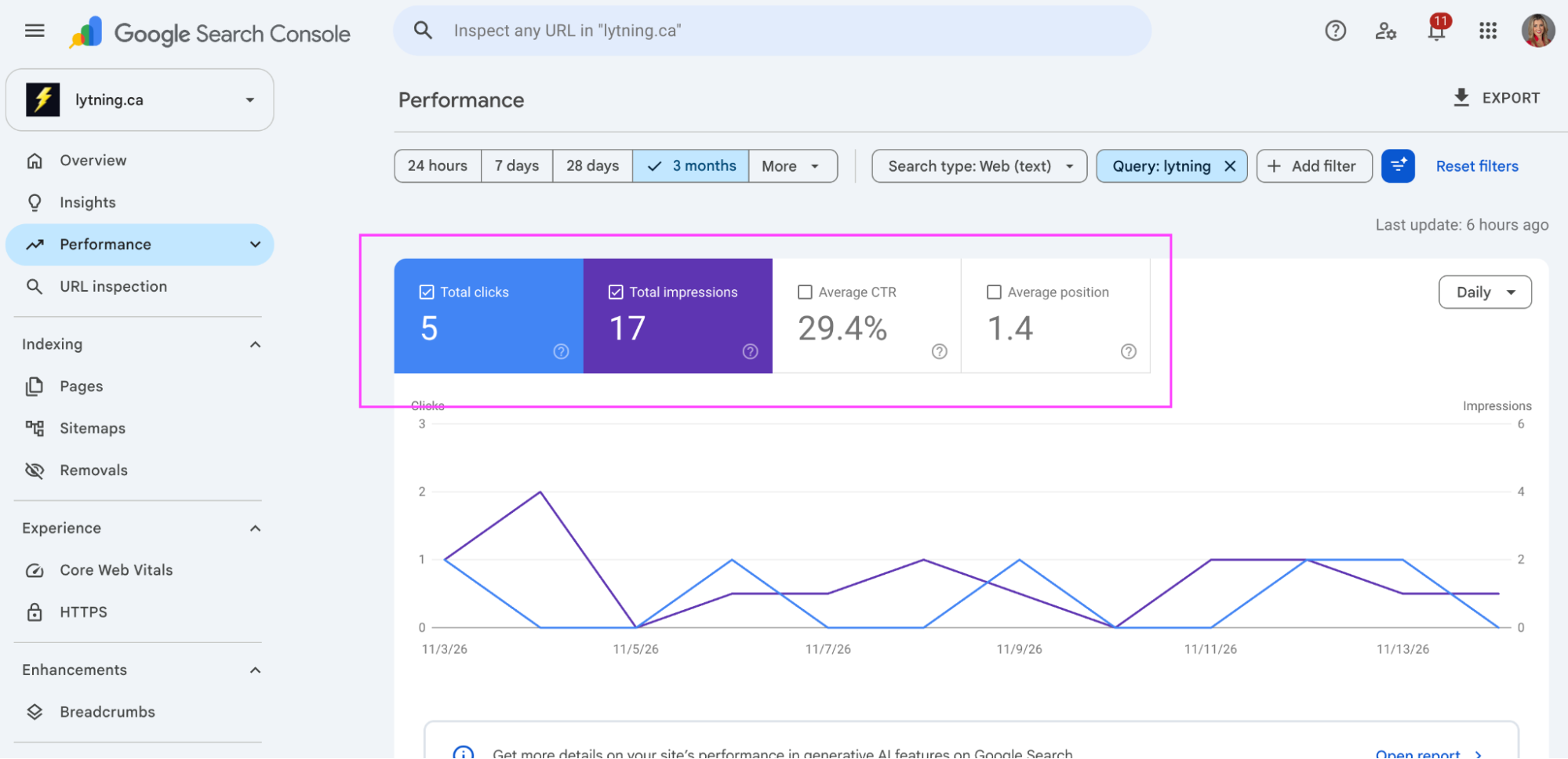
You can break all of that down by search term, page, country, device and date. Google explains everything in more detail here: https://support.google.com/webmasters/answer/7576553
Impressions become clicks.
Try the relationship using the article’s totals.
CTR = clicks ÷ impressions × 100. Prefilled with November 3–14, 2026 totals; edited values are examples, not live data.
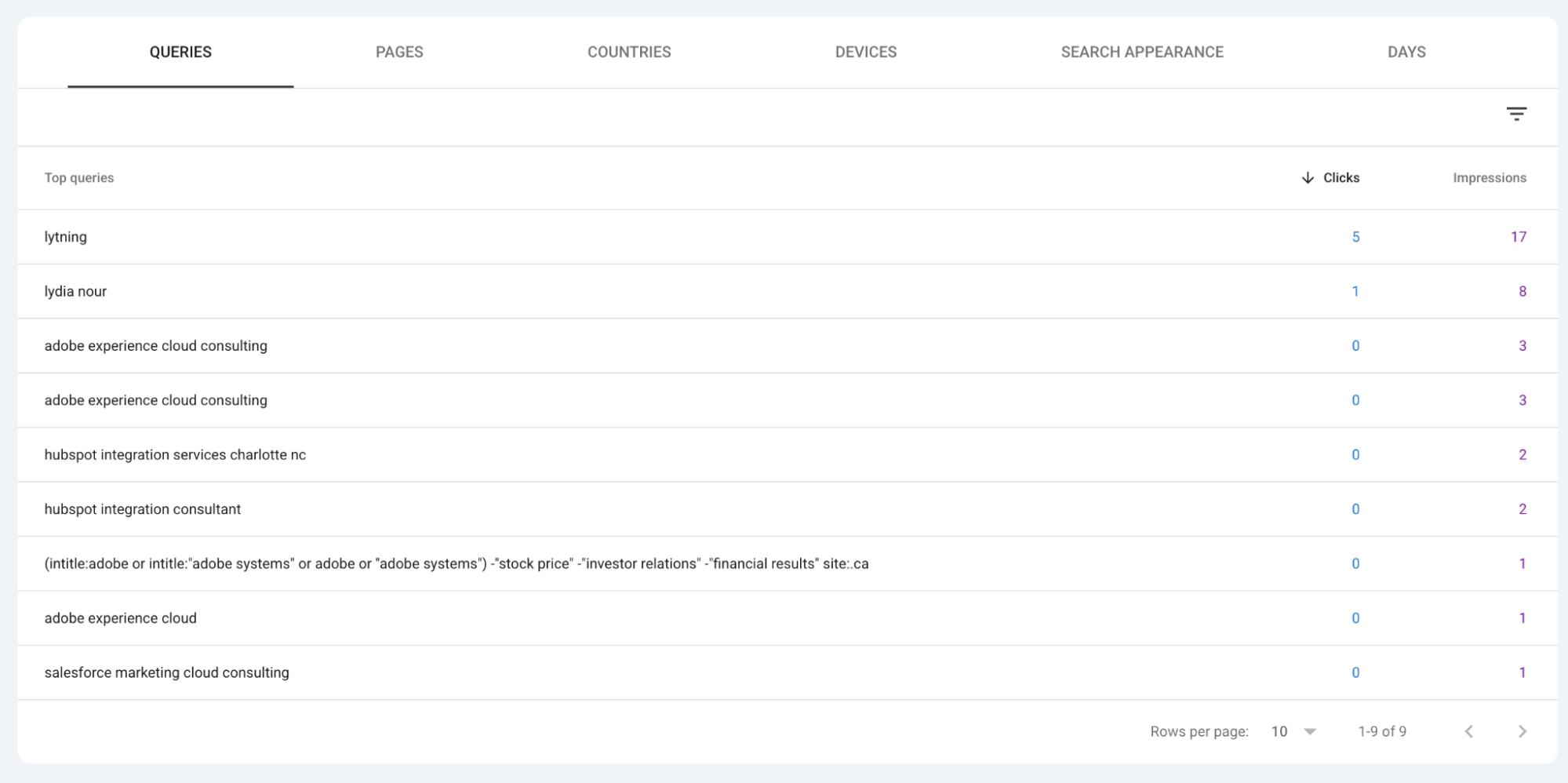
Our first two weeks (Nov 3 to 14): 62 impressions and 7 clicks. Most people found us by searching our name ("lytning" and "lydia nour"), but searches for our services are starting to show up too, like "adobe experience cloud consulting", "hubspot integration consultant" and "salesforce marketing cloud consulting".
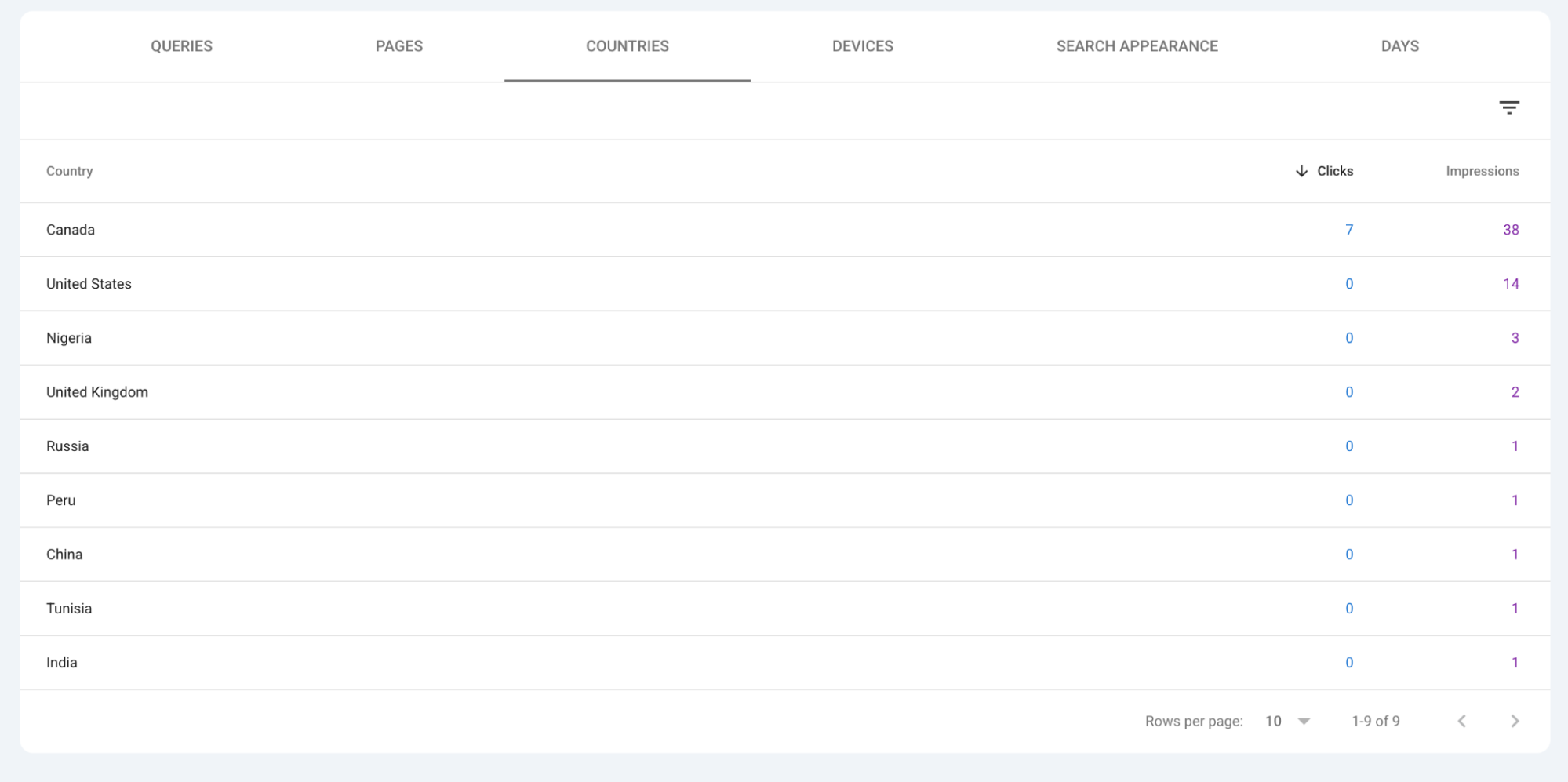
Most of it came from Canada (38 impressions and all 7 clicks), then the US (14), plus a few from places like Nigeria, the UK and India. Also, 6 of our 7 clicks were on mobile, so don't only test your site on a laptop.
Check what's indexed
Indexing > Pages shows which pages Google has indexed and, for the ones it hasn't, why. When we started we had 5 pages indexed. About a week later we're at 15. Some issues got fixed and a couple of new ones showed up, which is normal as Google crawls more of your site.
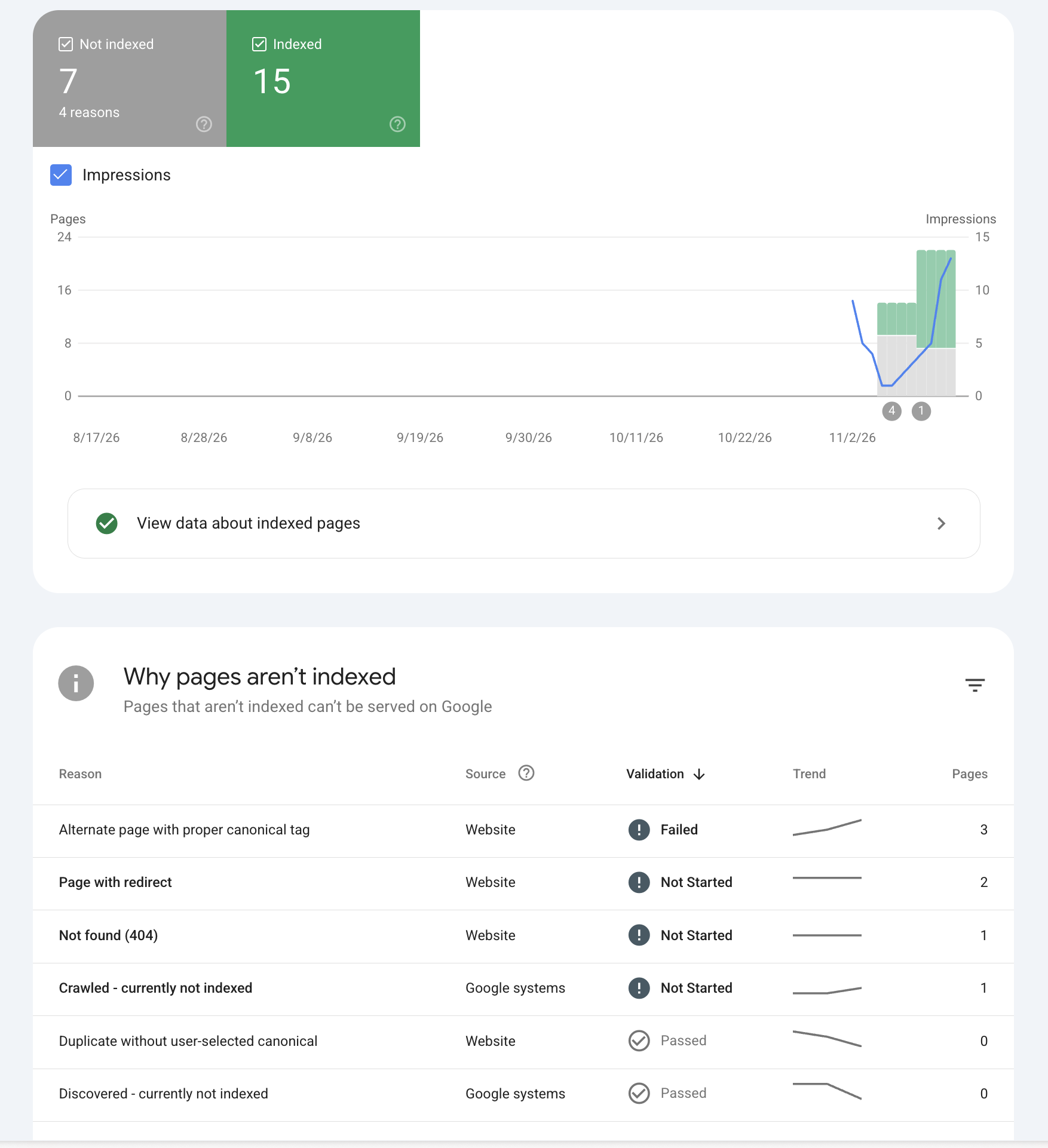
Not every reason in there is a problem:
- Page with redirect: Google found http://lytning.ca and got sent to the https version. That's what you want.
- Alternate page with proper canonical tag: Google found a copy like www.lytning.ca and used the real version instead. Also fine, that's your canonical tag working.
- Discovered - currently not indexed: Google knows the page exists but hasn't crawled it yet. Go to URL inspection and hit Request indexing, then hit Validate fix on the report. Ours passed.
- Crawled - currently not indexed: Google looked at the page but didn't index it (yet). Ours was the old /portfolio/nyp/ page, which now redirects to its new address, so the report may update after Google recrawls it.
- Not found (404): a page that doesn't exist. Worth fixing, more on ours below.
Challenges
Google takes its time. You won't know right away if a fix worked. We made our changes, requested indexing and then just had to wait. Ours passed in a few days, but plan for about a week.
The API 404. Search Console flagged api.lytning.ca as not found, since our API doesn't have a home page. First we tried a redirect in cPanel, and it did nothing. Turns out our API runs behind a proxy, so requests go straight to the app and skip cPanel's rules completely. We ended up putting the redirect in the app's code instead:
app.get('/', (req, res) => {
  res.redirect(302, '/health')
})
Looking back, we should've checked for 404s right at the start. Way easier to fix them before Google finds them.
Moving pages around. When we made the new Web Development page at /services/webdev/, our NYP and VESPER demos were still sitting at their old addresses under /portfolio/. That looked kinda weird since there's no portfolio section on the site, so we moved them to /services/webdev/nyp/ and /services/webdev/vesper/. The catch is Google already had the old URLs indexed and other pages were linking to them, so we added 301 redirects from every old address (images too) straight to the new ones. Anyone with an old link still lands on the right page, and Google can transfer ranking signals to the new URLs over time.
/portfolio/nyp//services/webdev/nyp/Found something worth fixing on your website?
Lytning can monitor new SEO issues as they appear; get in touch using the contact form below.
Talk through your websiteBack to the guide